Shopify section · Online Store 2.0 · free
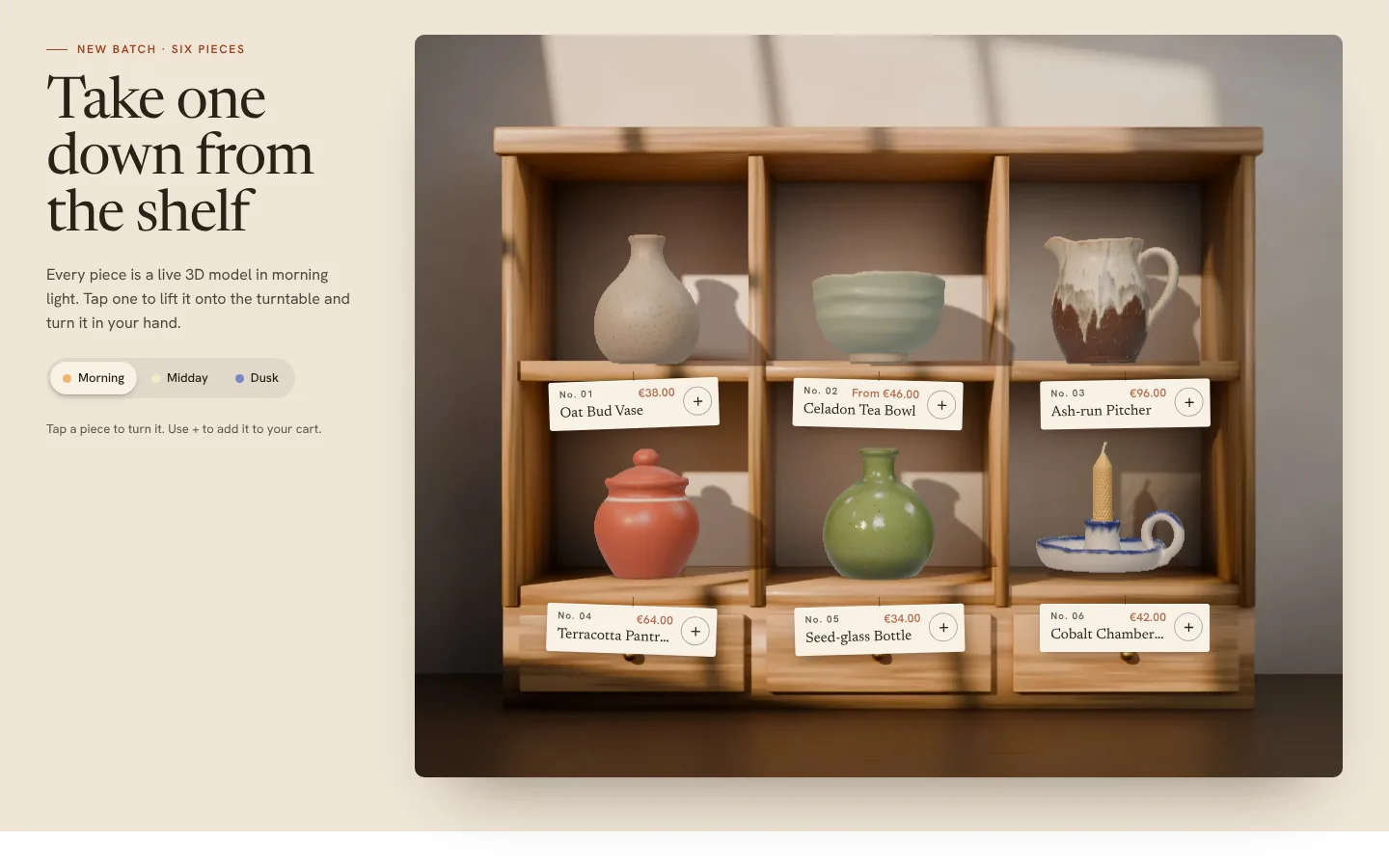
3D shelf collection Shopify 3D collection section: products on a lit shelf
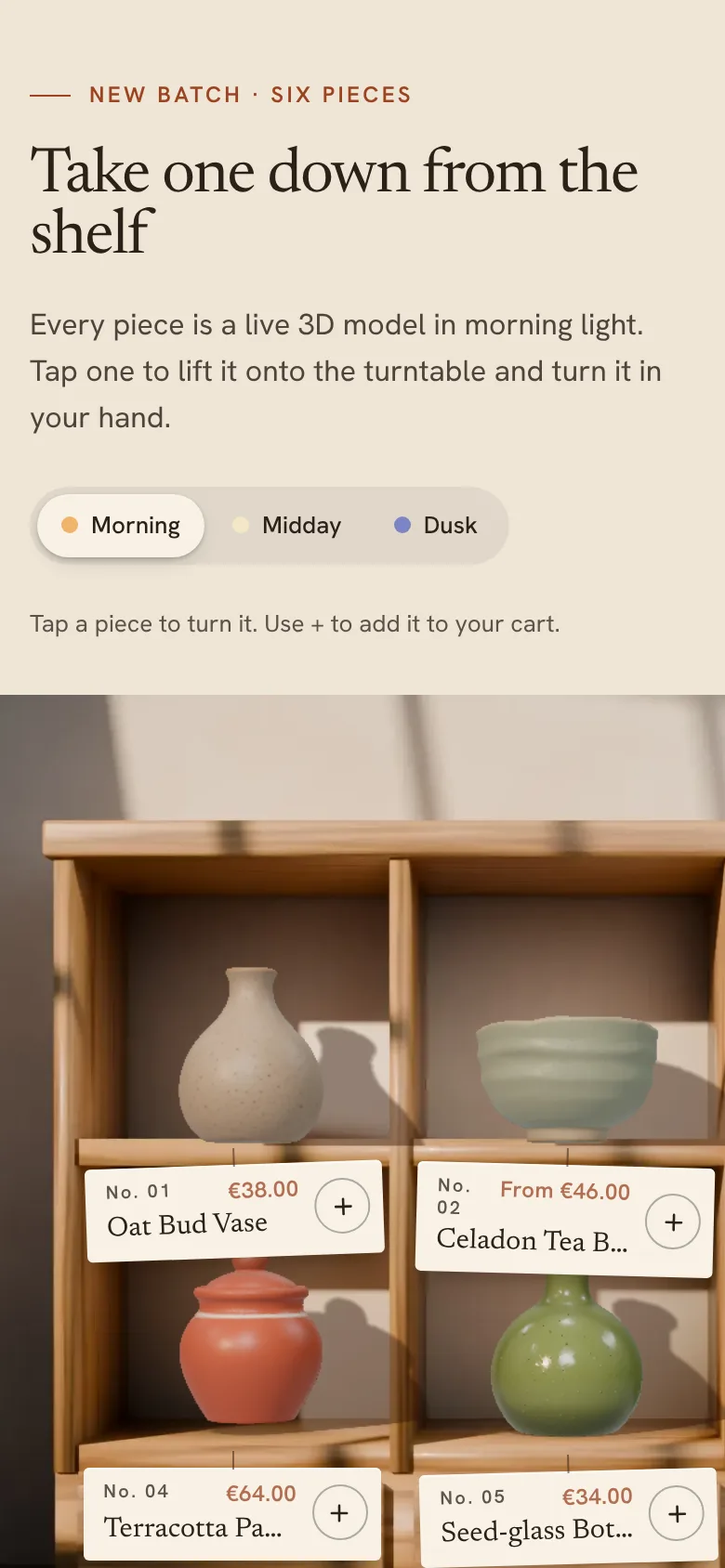
Your collection stands as live 3D models on a rendered oak shelf with morning, midday and dusk light. Tap a piece to turn it on a turntable; quick add to cart.
What you get
- One
.liquidsection file with full theme-editor settings - Uses your real products, variants, prices and 3D model media
- Add to cart that updates your theme's cart count
- Falls back to the product image without WebGL; respects reduced motion
- An AI prompt to restyle or extend it in Claude or ChatGPT
- Works on
- Online Store 2.0 themes (Dawn and themes built on it)
- Use on
- Collection or home page
- Checked with
- Shopify Theme Check: 0 errors
- Status
- Not yet tested in a live store. Tell us how it runs on yours.
How to install
A free Online Store 2.0 section from copytheprompt.design. It stages a collection on a photoreal oak cabinet. Every product that has a 3D model stands live in its bay, catches the window light and casts a real shadow into the picture. Tap a piece and it lifts onto a turntable where shoppers can turn it, pick a variant and add it to the cart. A + on each paper tag adds it in one tap.
It works on any Online Store 2.0 theme (Dawn and themes built on it). It is one section file plus a few assets. It does not replace your theme.
What you need
ctp-3d-shelf-collection.liquid(the section)assets/ctp-shelf-plate-morning.webp,assets/ctp-shelf-plate-noon.webp,assets/ctp-shelf-plate-dusk.webp(the cabinet in three lights)assets/ctp-shelf-placeholder.glb(a sample piece shown before you choose a collection)- A collection. Products with a
.glb3D model show in 3D; the others show their main image.
1. Back up your theme
- In Shopify admin, go to Online Store › Themes.
- On your current theme, select ⋯ (Actions) › Duplicate.
2. Add the section file
- In Online Store › Themes, on the theme you want to change, select ⋯ › Edit code.
- In the sections folder, select Add a new section (in the newer code editor, hover over the folder, select +, then New file).
- Name it
ctp-3d-shelf-collection(choose liquid if asked). - Delete the starter code, paste the whole of
ctp-3d-shelf-collection.liquidand select Save.
3. Upload the assets
- Still in Edit code, in the assets folder select Add a new asset (or + › Upload file).
- Upload the three
ctp-shelf-plate-*.webpfiles, one at a time. Keep the names exactly as they are. - Upload
ctp-shelf-placeholder.glbthe same way.
- If the editor will not accept the
.glbfile, go to Content › Files, select Upload files, upload it, then copy its link (⋯ › Copy link). Later, paste that link into the section's Placeholder model URL setting. The placeholder is only shown before you pick a collection, so you can also skip it.
4. Add 3D models to your products
- Go to Products and open a product.
- In the Media area, select Add media (or drag the file onto the media area) and choose your
.glbfile. Shopify also accepts.usdz, but this section uses the.glb. - Wait until the model has finished processing (the thumbnail turns into a 3D preview). Save the product.
- Repeat for each product you want in 3D. The section uses each product's first 3D model.
Tips for models that sit well on the shelf:
- Model the piece standing upright (Y up), with its front facing +Z. The section scales it to fit the bay and stands it on the shelf, so the size in your file does not matter.
- Keep it under about 5 MB. Draco and Meshopt compression both work.
- Products without a model show their featured image standing in the bay. Choose how under Products without a 3D model: Photo on white blends a white background into the shelf; Transparent cut-out suits PNG or WebP cut-outs; Framed card shows the photo as a small card.
5. Place the section
- Go to Online Store › Themes › Customize.
- Open the page you want, select Add section and choose CTP 3D shelf collection.
- Under Collection, select your collection. Six products stand on each shelf; with more, shoppers get shelf pages (up to Products to show, maximum 24).
- Pick the Window light (Morning, Midday or Dusk). Leave Let shoppers change the light on to show the switch.
- Select Save.
Your own shelf picture (optional)
The pieces line up with the bundled render because the 3D camera matches the camera that rendered it. A Custom shelf image must therefore be the same scene layout: 3 bays across, 2 shelves, 1440 × 1152 px or larger, framed the same way. If you only want a different mood, change the Window light and colours instead. The light switch is hidden while a custom image is set.
Troubleshooting
- The section is not in Add section. Check that the file is in sections, saved without an error, and that you are adding it to a page template (it cannot go into the header or footer group). The theme must be Online Store 2.0.
- A product shows its photo instead of 3D. It has no
.glbmodel yet, the model is still processing, or the file failed to load (open the browser console to see the file name). Re-upload the model in Products › Media. - A model floats, sinks or is tiny. The section fits the model's bounding box. Remove hidden helper objects (lights, cameras, ground planes) from the file, apply transforms in your 3D app and export again.
- The shelf is plain or broken. The
ctp-shelf-plate-*.webpfiles are missing from assets or were renamed. - Pieces do not sit in the bays. You set a Custom shelf image with a different layout. Remove it.
- The cart count does not update. Your theme does not use the standard cart icon id. The item is still added. Set After add to cart to Go to the cart page, or ask your theme developer to listen for the
ctp:cart:addedevent. - No 3D at all. The shopper's browser has WebGL off, Live 3D models is off, On phones is set to images, or the 3D library could not load (some privacy extensions block cdn.jsdelivr.net). The shelf then shows product images and still sells.
- It is heavy on old phones. Turn off Live shadows, or set On phones to Product images only.