Shopify section · Online Store 2.0 · free
3D product hero Shopify 3D product hero section with variant colours
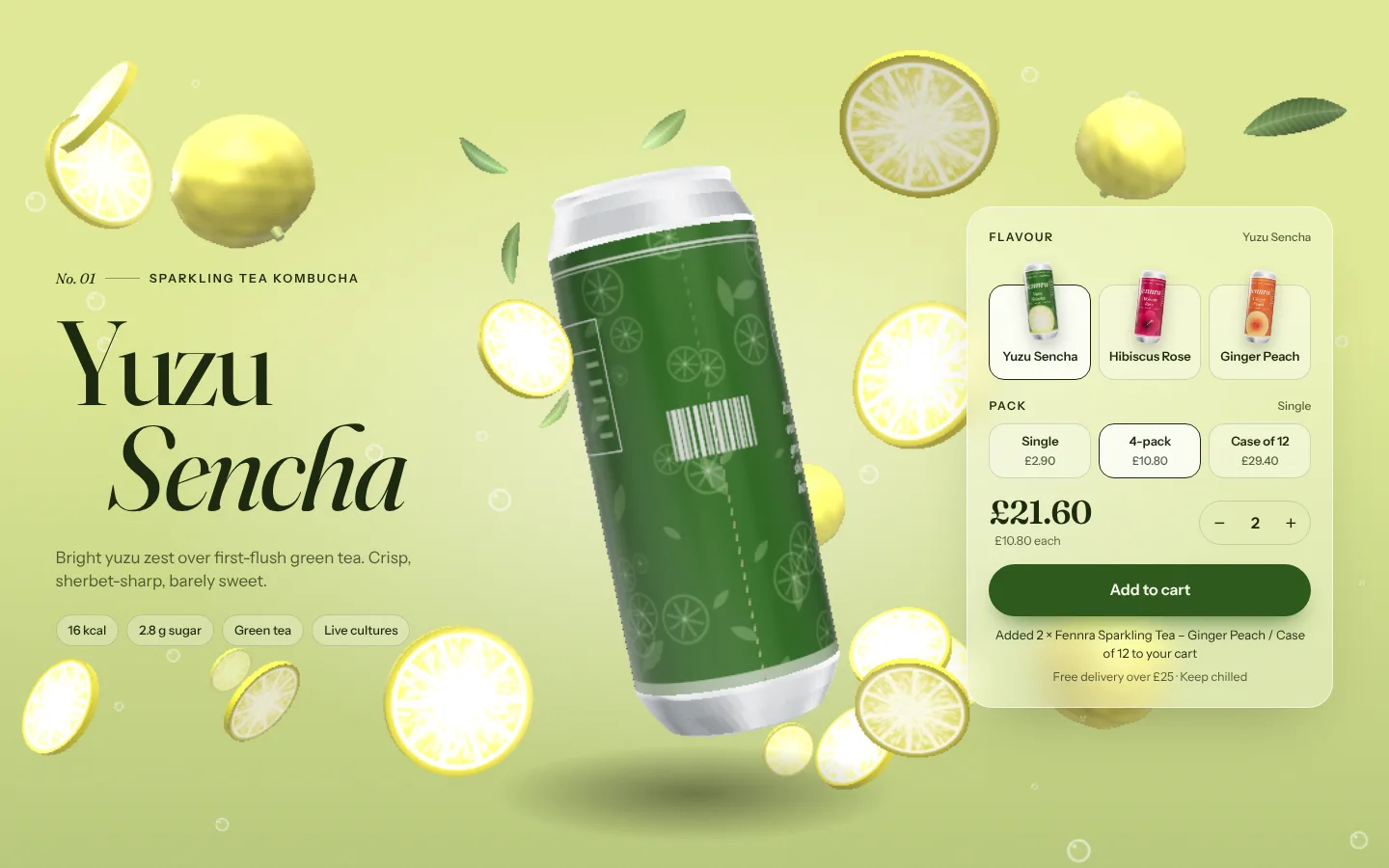
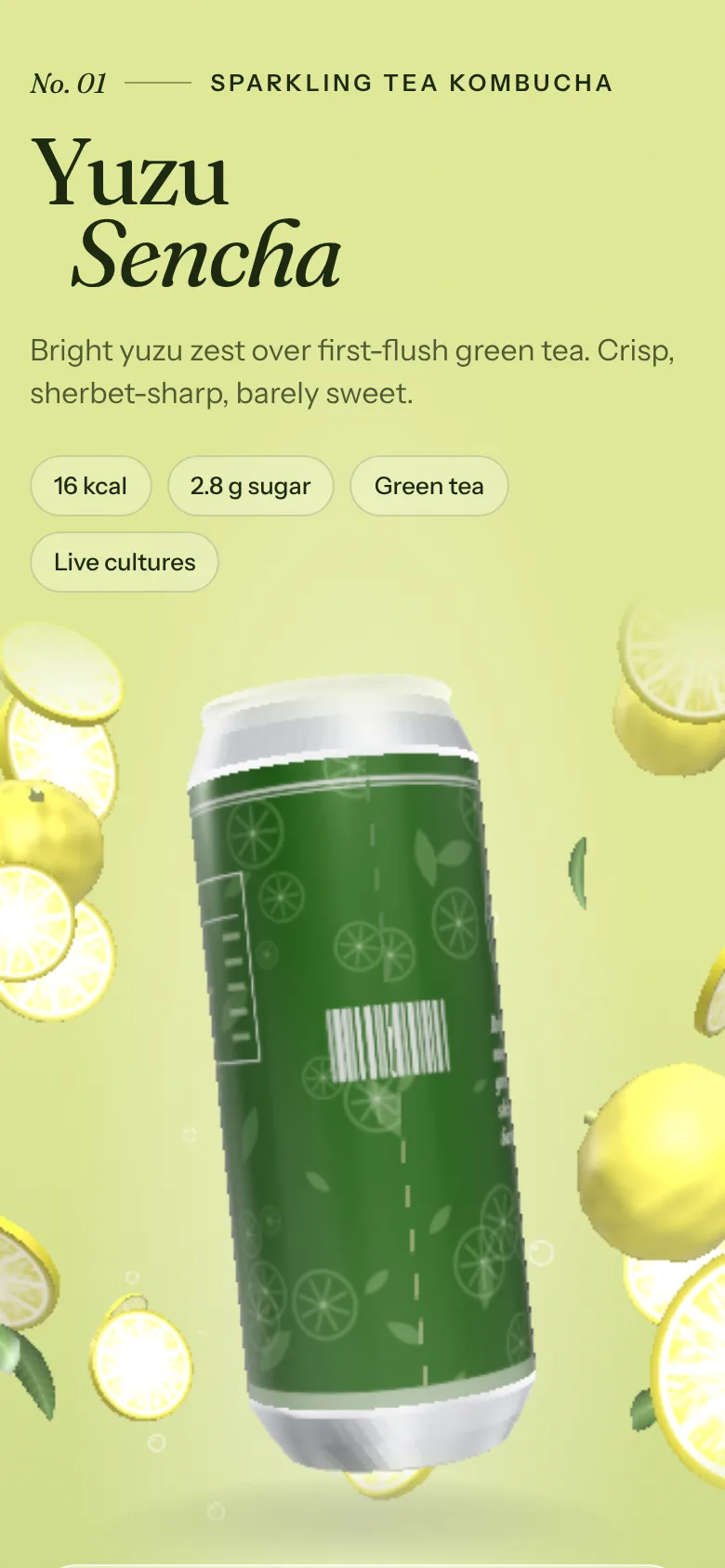
A live 3D product that turns to the cursor, with each flavour or colour variant repainting the scene, real prices, a pack selector and add to cart.
What you get
- One
.liquidsection file with full theme-editor settings - Uses your real products, variants, prices and 3D model media
- Add to cart that updates your theme's cart count
- Falls back to the product image without WebGL; respects reduced motion
- An AI prompt to restyle or extend it in Claude or ChatGPT
- Works on
- Online Store 2.0 themes (Dawn and themes built on it)
- Use on
- Product or home page
- Checked with
- Shopify Theme Check: 0 errors
- Status
- Not yet tested in a live store. Tell us how it runs on yours.
How to install
A free Online Store 2.0 section from copytheprompt.design. It shows one of your products as a live 3D can. Each value of one product option (for example Flavour) becomes a flavour: picking it pours that flavour's colour up the section, spins the can and re-prints its label. Shoppers choose the flavour, any other option (such as pack size) and a quantity, then add to cart.
It works on any Online Store 2.0 theme (Dawn and themes built on it). It is one section file plus one image. It does not replace your theme.
What you need
ctp-3d-product-hero.liquid(the section)assets/ctp-can-label.webp(the default label art)- A product whose variants use a flavour-style option, for example Flavour: Yuzu Sencha, Hibiscus Rose, Ginger Peach. A second option (for example Pack: Single, 4-pack, Case of 12) works too.
1. Back up your theme
- In Shopify admin, go to Online Store › Themes.
- On your current theme, select ⋯ (Actions) › Duplicate. If anything goes wrong, you can publish the copy.
2. Add the section file
- In Online Store › Themes, on the theme you want to change, select ⋯ › Edit code.
- In the file list, find the sections folder. Select Add a new section (in the newer code editor, hover over the folder and select the + button, then New file).
- Name it
ctp-3d-product-heroand choose liquid if you are asked for a type. The file will besections/ctp-3d-product-hero.liquid. - Delete the starter code Shopify puts in the new file. Open
ctp-3d-product-hero.liquidfrom this download in a text editor, copy everything, paste it in and select Save.
3. Upload the label art
- Still in Edit code, find the assets folder and select Add a new asset (or the + button › Upload file).
- Choose
ctp-can-label.webpfrom this download'sassetsfolder and select Upload asset. - Keep the file name exactly as it is. The section looks for
ctp-can-label.webp.
4. Place the section
- Go to Online Store › Themes and select Customize.
- Open the page you want (usually Home page). In the left sidebar, select Add section and choose CTP 3D product hero (it is listed under copytheprompt or in the search).
- Before you choose a product, the section shows three demo flavours so you can see it working.
- In the section settings, under Product, select your product.
- Check Flavour option name. It must match your option name, for example
Flavour,ColourorScent(it is not case sensitive). If it does not match, the first option is used. - Select Save.
5. Set up each flavour
Each flavour gets its colours and label from a Flavour block. The section comes with three.
- In the section, select a Flavour block (or Add block › Flavour).
- Option value must match the variant option value exactly, for example
Yuzu Sencha. If you leave it empty, blocks match flavours by position (first block = first value). - Pick the Can colour, Page colour and Text colour. The section checks that the text stays readable and switches to near-black or white if it would not be.
- Can label (optional): upload your own label image. Make it 2048 × 1360 px; it wraps once round the can and the centre of the image faces the front. Without an image, the section prints a label from the Wordmark (section setting, or your product vendor), the flavour name and the label art.
- Botanicals: choose citrus slices, flowers, stone fruit or leaves only, and their colour.
- Tasting note and Facts (separate facts with
|, for example16 kcal | 2.8 g sugar | Green tea).
Alternative without blocks: you can store a colour on each variant instead.
- Go to Settings › Custom data › Variants › Add definition.
- Name it Flavour colour, set the namespace and key to
custom.flavour_colour, and choose the type Color. Save. - Go to Products, open the product, open each variant and set Flavour colour.
- If you use a different namespace and key, enter it in the section's Variant colour metafield setting. Blocks win over the metafield when both exist.
6. Optional: product images as the fallback
When a shopper's device has no WebGL (or you turn Live 3D can off, or choose Product image, no 3D for phones), the section shows each variant's image instead. To set them:
- Go to Products and open the product.
- Under Media, upload a picture of each flavour (a transparent PNG or WebP of the can looks best).
- Open each variant, select its image and save.
The same images appear as the flavour thumbnails in the picker.
7. 3D models
This section draws the can in code, so it does not need a 3D model file. (The CTP 3D shelf collection and CTP 3D configurator sections use your product's 3D models: in Products › your product › Media, select Add media or drag a .glb file onto the media area, then wait for Shopify to finish processing it.)
Troubleshooting
- The section is not in Add section. Make sure the file is in the sections folder and saved without an error message. The section cannot be added to the header or footer group. Your theme must be an Online Store 2.0 theme (it has JSON templates in templates).
- "Liquid syntax error" when saving. The paste was incomplete. Copy the whole file again, including the
{% schema %}block at the end. - All flavours have the same colour. The Option value in the blocks does not match your variant values. Copy the value exactly from the product's variant list, or leave it empty to match by position.
- The label shows the printed design, not my image. Check the block's Can label image. Images must be served from Shopify (uploaded through the picker); images from other sites cannot be drawn into 3D.
- The label art is missing (plain colour).
ctp-can-label.webpis not in assets, or it was renamed. - The cart count does not update after Add to cart. Your theme does not use the standard cart icon id. The item is still added. Set After add to cart to Go to the cart page, or ask your theme developer to listen for the
ctp:cart:addedevent. - The can is a flat image. The shopper's browser has WebGL off, the device is low-powered and On phones is set to an image, or the 3D library could not load (some privacy extensions block cdn.jsdelivr.net). The buy panel works the same either way.
- It is slow on old phones. Set On phones to Lighter 3D (the default) or Product image, no 3D, and turn off Bubbles.
- Motion makes me dizzy. If the visitor's system asks for reduced motion, the section turns off the spin, pour, vortex and floating; flavours cross-fade instead.